HOW TO CREATE DATABASE IN MICROSOFT ACCESS

 
Microsoft Access provides two methods you can use to create a database.

Option 1: You can create a database using Blank Access Database and then add the tables, forms, reports, and other object later – this is the most flexible method, but it requires you to define each database element separately.

Option 2: You can also create a database using Create Database by Using Wizard. Either way, you can modify and extend your database at any time after it has been created.

To create a simple database file, simply follow the steps below:

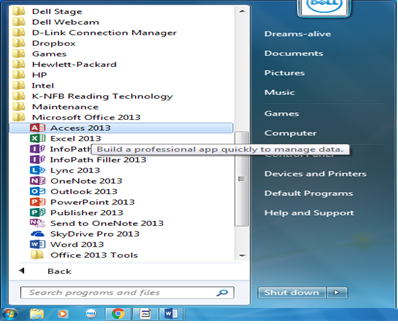
v Open Microsoft Access

v In the welcome window, click Blank Access Database and Click Ok

v Type your database name and click create

Make sure the name you type can easily be remembered

CREATING A TABLE

After creating a database file, next is to create a table for your database. A table is a collection of data about a specific topic, such as product or supplier. Before creating a table, you should first of all decide the kind of information you will need. For example you may want to keep records of the NAME, SEX, STATE, TELEPHONE NUMBER, HOME/CONTACT ADDRESS, DATE OF BIRTH and AGE of all the staff in Dream-alive Computer Institute. To achieve this, you need to put a column in your database for each of these fields i.e. NAME, SEX, STATE AGE etc. these fields are captured in one group called record. As you add new people (records) to the table, it gets longer. On the other hand, if you delete people’s records, the table gets shorter, but the same column is retained.

A table is the primary means of storing data in Microsoft Access. A single file is called a table and a collection of tables and associated files is referred to as database.


There are three ways you can create a table in Microsoft Access, namely:

v You can create a table using Design view

v You can as well create a table using Wizard

v And lastly, you can create a table by entering data (Datasheet)


You can practice to create tables by using the examples below, which gives you more understanding of how tables work.

v To create a table using design view, simply double click the “Create Table in Design view” in the database window.

v Next, type your field names and their data types. Data type indicate the type of entry you want to enter in the table. You can also indicate the properties/description of your data. Property/Description is where you can indicate how many lengths of characters you want a field to accept.

v Save your table and close.
COMPONENTS OF DATABASE

 Data means raw facts or unprocessed information. Data could be in form of Number, Alphabet, Alphanumeric, (combination of numbers, alphabets and some special characters such as symbols), Logic etc.

A)  Field: A field is a unit of a record that contains Alphabets (Characters), Numbers or combination of both. A field is used to categorize or create heading for a particular column in your record. For every field there must be a name given to it.

B)  Field Name: You can use the Fieldname property to specify the name of a field within a table. For example, you can specify “Last Name” for a field that stores employees’ last names within the Employees table.

C)  Field Size: This specifies the length of a field and it determines how many characters or alphabets your field would contain.

D)  Data Type:    This provides an easy way to set the type of data you want to enter in a particular field e.g. Character, Number Date, Currency etc.

·        Character field accepts alphabet up to a maximum width of 254 characters

·        Number field accepts only  numbers and has a maximum width of 20 digits

·        Yes/No Field accepts a single character i.e. Y or N

·        Date/Time field accepts only date and contains a width of 8 characters. When entering date, it must be entered like this: 12/28/09 (mm/dd/yy), where mm(12) is for month in 2digits, dd(28) is for day in 2digits and yy(09) for year in 2digits.

·        Currency field accepts only currency and it’s only the number value that must be entered into the fields provided.

·        Memo field is used to enter comment, remark or as the names indicates, MEMO.

·        OLE field (Object Linking Embedment) accepts only objects, pictures or images.

·        Lookup Wizard field enables you to type a dropdown list of names or texts.

E)  RECORD: A database file consists of different Records. These are information, which are constructed out of a fixed range of fields in which the different categories of data are stored. In other words, a record is made up of elements of individual fields in a single row on the database table structure. A record is usually assigned a sequential record number when the record is added to the database.

F)  DATABASE NAME:  Database name is name given to your database. All database files must have names used in referring to them. For example, you could have a database file called ADDRESS. DBF, which contains fields like address, Phone number, email address etc.

DATABASE MANAGEMENT SYSTEM USING MICROSOFT ACCESS


DEFINITION

Database is collection of information related to a particular subject or purpose. Database takes care of your personal business or information such as tracking customer orders, maintaining a music collection, Cheque book, Telephone book, expenses book etc.

In Database, the entire field for a particular entry is called a record. A record contains all the information about a particular person or thing. Each item within a record is called a field. The following fields can be contained in a client’s record within a Database:

A.   Surname

B.   Other Names

C.   Contact Address

D.   Postal Address

E.   Marital Status

F.   Age

G.   Sex

H.  Telephone Number etc


Using Microsoft Access, you can manage all your information from a single database file. Within the file, you can divide your data into separate storage container called tables, you can also view, add, and update data using forms, you can as well find and retrieve just the data you want using queries and analyze or print your data using reports. To bring the data from multiple tables together in a query, form or report, you need to define the relationships between the tables. Relationship is used to merge tables and forms together and retrieve just the data that meets conditions you specify including data from multiple tables and create a query. A query is used to retrieve some specific records in a database.

There are different types of Database Application Packages, though they perform the same functions but they are produced by different manufactures. Examples are Dbase 3, 4, & 5, DACEASY, FOXPRO, AMIPRO, PEACHTREE, S.P.S.S, MS-ACCESS etc.


ADVANTAGES OF DATABASE MANAGEMENT SYSTEM

1.    Database enables storage of all kinds of information often called data such as address, telephone numbers, school report, exam scores etc. this is because it has large storage facilities in a small space.

2.   It makes searching for specific stored information more flexible and easier. This is due to the fact that database system possesses fast and effective searching procedures.

3.   It enables the sorting of records in a specific order.

4.   It makes the creation of a mail merge document with your data possible.

5.   It enables easy modification of stored information.

6.   It provides security for the Data in a Database.

7.   Flexibility

8.   High Speed

9.   High degree of Accuracy

10. Duplication is possible


Some versions of database application packages run in DOS (Disk Operating System) environment. Some of which are Dbase II, III, IV, etc. some versions of database programs that run in Windows environment include Dbase V for windows, Microsoft Access, Magic, FoxPro, FoxBase, Oracle, MS-SQL etc.

CORELDRAW KEYBOARD SHORTCUTS

 CORELDRAW KEYBOARD SHORTCUTS

This include all shortcut keys we can integrate while using CorelDraw to increase productivity and to be more time efficient.

Alignment Shortcut Keys: this shortcut is used for aligning two or more object to left, center or right by the first selecting the object to be aligned, then sift select the sample object followed by this keys:

Left Alignment              =        L

Center Alignment          =        C

Right Alignment             =        R

Top Alignment              =        T

Bottom Alignment          =        B


Other Shortcut Keys

Undo                              =        Ctrl + Z

Redo                               =        Ctrl + Shift + Z

Pick Tool                        =        Spacebar             

Shape Tool                    =        F10                      

Zoom In                         =        F2                        

Zoom Out                      =        F3                                  

Freehand Tool               =        F5                        

Rectangle Tool               =        F6                        

Ellipse Tool                    =        F7                        

Polygon Tool                   =        Y                          

Text Tool                      =        F8                        

Interactive Fill Tool      =        G

Outline Tool         =        F12

Fountain Fill         =        F11

Symbols                =        Ctrl + F11   

Zoom Tool            =        F11

Convert to Curve  =        Ctrl + Q

Break Apart         =        Ctrl + K

Combine                =        Ctrl + L

Group                   =        Ctrl + G

Ungroup                =        Ctrl + U

Bold                      =        Ctrl + B

Italic                    =        Ctrl + I


These shortcuts cover a wide range of tasks, from basic navigation to more advanced editing functions. Including these in your workflow can indeed make your CorelDraw experience more efficient

What is CorelDraw?

 What is CorelDraw?


CorelDraw is a vector-based desktop publishing application program known for its versatility in creating professional artwork ranging from simple logos to intricate technical illustrations. It utilizes vector graphics, which are based on mathematical equations to represent images, making them easily scalable without losing quality.

Here's a breakdown of the information you provided:

Versions: CorelDraw has gone through various versions, such as 4, 5, 7, 8, 9, 10, 11, 12, 13, and 14, with each version introducing new features and improvements. However, the manual you mentioned focuses specifically on CorelDraw Version 12.

  1. Starting CorelDraw:

    • Click the Start Button in the Windows Start Menu.
    • Navigate to Program or All Programs.
    • Find CorelDraw Graphics Suite 12 or the installed version on your computer.
    • Click on CorelDraw 12 to open the application.
  2. The CorelDraw Screen:

    • After launching CorelDraw, you encounter the Welcome Screen, which offers six options.
  3. Welcome Screen Options:

    • New Graphic: Starts a new blank graphic, similar to starting a new document in other programs.
    • Open Last Edited: Opens your last edited graphic for continued work.
    • Open Graphic: Allows you to open an existing graphic or design.
    • Template: Provides access to professionally created designs.
    • CorelTUTOR: Contains step-by-step instructions for creating various designs, from simple objects to complex designs.
    • What’s New?: Highlights the new features in CorelDraw 12, showcasing the differences from previous versions.
  4. Starting a New Graphic:

    • Clicking on "New Graphic" from the Welcome Screen initiates the process of creating a new blank graphic in CorelDraw 12.

The manual you provided seems to be a guide for beginners, introducing them to the CorelDraw application and its basic functionalities.

USING FUNCTION METHOD OF CALCULATION


Functions in Excel are the in-built method of calculation, which can be invoked anytime the user wants to make use of it. e.g SUM for addition, MAX for maximum and IF – for conditional statement known as logical function.


STATISTICAL FUNCTIONS

SUM FUNCTIONS: This is used to sum the values in a list e.g to calculate the total for first Row of the above table follow these steps:

v Place the cursor at cell E3

v Type = Sum(B3:D3) and press Enter Key

AVERAGE FUNCTION: This is used to find the average of the values in a list. To calculate Average for Cell B3…D3 follow the following steps:

v Place the cursor at cell F3

v Type = AVERAGE(B3:D3) and press Enter Key

POSITION FUNCTION: This is used to get the rank of the values in a list. To calculate the POSITION for Cell B3…D3. Follow the steps:

v Place the Cursor at E3

v Type = RANK(B3, $E$3:E7) and Enter

 COUNT FUNCTION:This is used to count the number of items in a list e.g. =COUNT(B3:D3)


MAXIMUM FUNCTION: This is used to get the largest value in a list e.g =MAX(B3)


MINIMUM FUNCTION: This is used to get the smallest value in a list e.g =MIN(B3:D3)


PRODUCT FUNCTION: This is used to get the product of two or more numbers e.g =Product(B3:D3)


MATHEMATICAL FUNCTIONS

SQUARE ROOT:  This is used to get the square root of one or more numbers e.g =SQRT(B3:D3)

ROUND FUNCTION: This is used to round or approximate figures e.g =ROUND(62.2533,1) and press enter key we will get 62.3 that is been rounded to 1 decimal place.